Procedures#
Before you start making solutions in the Pchem lab, ensure that the Perkin Elmer Spectrum 400 FT-IR/FT-NIR Spectrometer is turned on (it should not be turned off)
Log into the Spectrum IR software on the computer
In the Tabs on the bottom of the screen, you will be able to adjust several factors for your experiment such as: sample name, save location, instrument beam path, advanced settings, and basic instrument set-up
In this experiment, you will mainly be focusing on just sample name, save location, and basic instrument set-up to adjust a few parameters
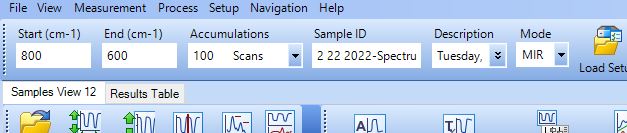
It is also noted to adjust the parameters at the top of the page as well so that they reflect what you have included in the bottom (specifically Sample ID)
Sample Naming#
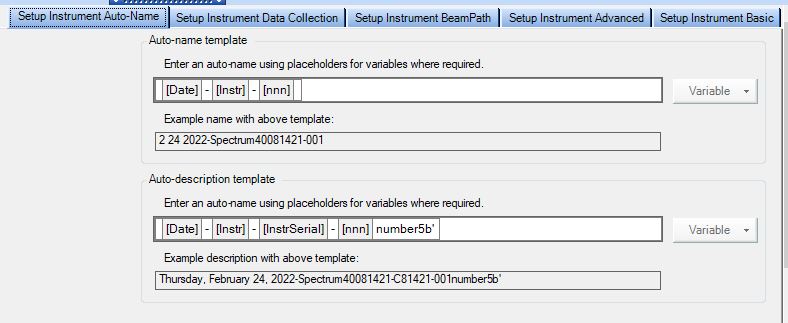
You can enter a name for your sample in both the Auto-name and Auto-description box after the [nnn] listed
Sometimes the auto-naming function does not work as you would like, so you may manually enter a name for the file up at the top of the page where it says ‘Sample ID’.
Data Collection#
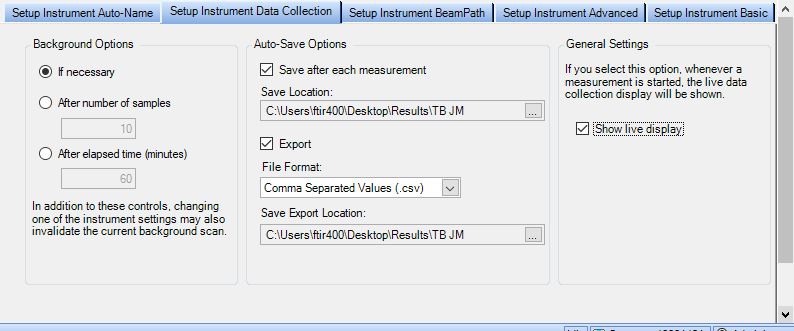
Under Auto-Save Options you can chose where your files will save and the file format to export as
Basic Instrument Settings#
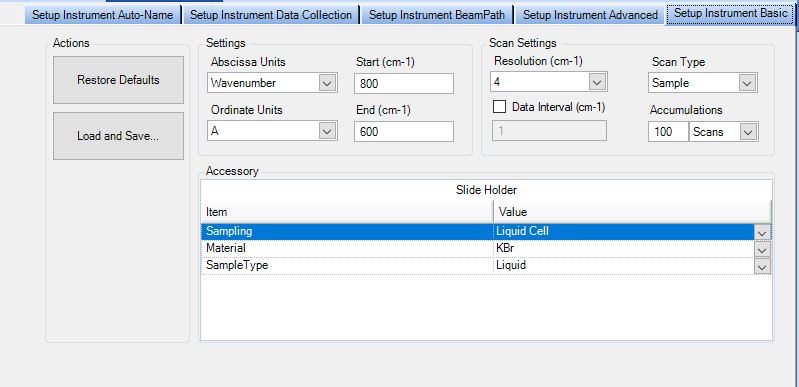
Here you can chose the wavelength range you wish to measure your samples within, the resolution, scan type, accumulations (how many scans), and units (absorbance, etc.)